

Same agent, two front doors
An agent is a loop: read the code, run a command, edit a file, check the result, repeat. That loop does not care whether you are looking at a window or a terminal. What changes is everything around it: how you start tasks, how you watch them, and how the results get into the rest of your day.
OmniRush is a useful example because both front doors run the same engine with the same models (GPT 6 Astra (the default), GPT 6.1 Sol and GPT 6 Sol). The desktop app is for Windows (x64), macOS (Apple silicon) and Linux (x64 and arm64, as .deb, AppImage or Arch package). The CLI runs on Windows, macOS and Linux with Node.js 22.19 or newer. You sign in with one account in both.
| You want to… | Desktop app | Terminal (CLI) |
|---|---|---|
| Keep several projects and their chats in view | Workspaces in a sidebar, one per project | One session per terminal, or tmux |
| Split a big task between agents | Swarms and sub-agents | Sub-agents with /subagents |
| Ask one question and move on | Open the app, pick a project, type | omnirush -p "…" |
| Feed the agent another tool's output | Paste or attach | Pipes: git diff | omnirush -p "…" |
| Run on a server or in CI | Not the right tool | Works over SSH, in scripts and without a terminal |
| Pick the model and effort | A picker in the composer | -m model:effort, or ctrl+t mid-session |
| Talk instead of type | A microphone button in the composer | /voice (hold Space to talk) |
When the desktop app fits
A window wins when the work is long, loose or parallel. Think “figure out why these two results disagree”, “refactor the importer”, or a research question with a folder of files behind it.
Workspaces keep projects apart
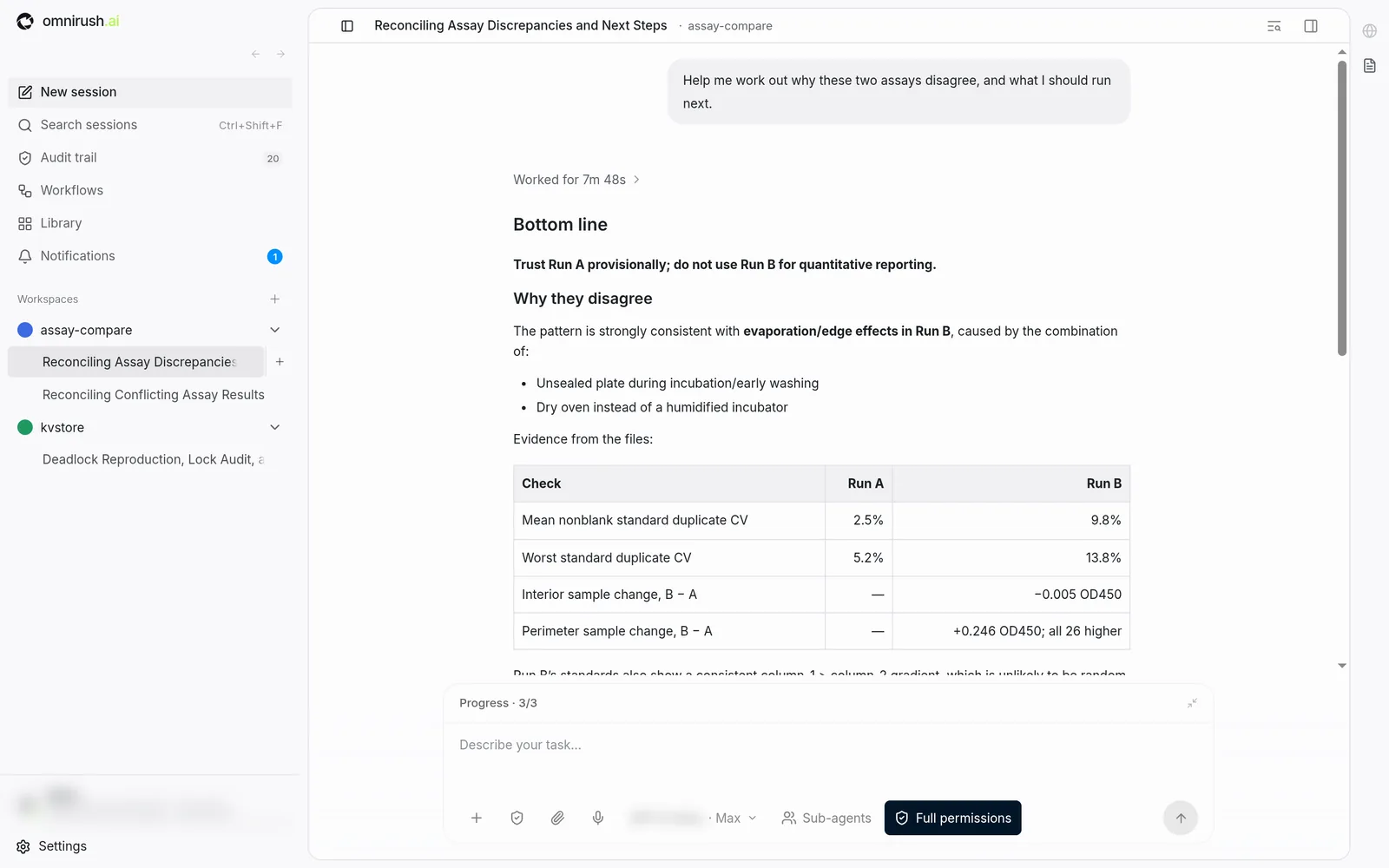
Each project folder is a workspace in the sidebar, with its sessions underneath. Switching from a data-analysis project to a Python service is one click, and each chat keeps the right folder as its context. That matters more than it sounds: an agent that starts in the wrong folder reads the wrong files.
Swarms, for work that splits
Ask for a swarm in the prompt and the task is split between agents running side by side, with one summary at the end. It suits tasks with natural parts: reproduce, audit, fix. Our deadlock walkthrough shows a real one, with three agents and the timings of each.
An agent that starts in the wrong folder reads the wrong files.
Everything you tune is in the composer
The box you type in also holds the controls you change most: the model and reasoning effort, sub-agents, attachments, voice dictation, and a full-permissions toggle for projects you trust. There is no settings page to dig through mid-task.
A Library holds skills: reusable instructions the agent can load when a task needs them.
Reading long answers is easier
Agents write a lot: tables, code, step lists. A desktop app renders those properly, keeps them scrollable and lets you search old sessions. If you review an agent's reasoning before you accept its changes, and you should, a window is the more comfortable place to do it.
When the terminal fits
The terminal wins when the agent is one step in a chain, when you are already at a prompt, or when there is no screen at all.
Start where you already are
$ cd ~/code/api
$ omnirush
That opens the full-screen agent in the current folder. No window to switch to, no project to pick: the folder you are in is the project.
One-shot answers and pipes
-p answers once and exits. The reply goes to stdout and errors to stderr, and the exit code is 1 when the turn fails, so it behaves like any other Unix tool:
$ git diff | omnirush -p "review this for bugs"
$ omnirush -p "summarise the last 10 commits" > CHANGES.md
$ npm test 2>&1 | omnirush -p "why does this fail?"
A run without a terminal, in a script or CI, answers once the same way. Never pipe secrets, private keys or logs with customer data into it.
Pick up where you left off
--continue resumes your last session, and -r picks one from a list. That makes the CLI good for work in short bursts: a question before a meeting, a follow-up after.
Control without leaving the keyboard
- -m gpt-6-sol:high picks a model and effort for one run; ctrl+t changes the effort mid-session. Sessions start on xhigh.
- /subagents and /agents hand pieces of work to sub-agents.
- /jobs lists long shell commands running in the background, such as a dev server or a slow build.
- /compact shortens a long chat on demand; long chats are also compacted automatically.
- Send a message while the agent works to steer it: it reads the message at its next step.
Guarded by default
In the CLI, git writes, destructive commands and sudo ask first. --yolo, or /yolo on in a session, allows every command for projects you trust. The default is the right one for most days.
The folder you are in is the project.
Remote machines
Over SSH, omnirush login prints a link to open in a browser on any device. Run the agent inside tmux or screen, and a long task survives a dropped connection. Our Linux CLI guide covers this setup in detail.
A day that uses both
In practice the split is rarely either-or. A day that uses each where it is strongest might look like this:
- Morning, desktop app: a swarm on the big task of the day, with the project open in its workspace.
- Between meetings, terminal: omnirush -p for a quick review of a teammate's diff.
- Afternoon, terminal over SSH: the agent works through a failing build on a test server inside tmux.
- End of day, desktop app: read the swarm's summary, check the diff, commit.
Because both use one account, the daily allowance is shared. Using each tool where it is strongest makes the allowance go further.
Advice for any agent, in any shape
- Start in the project folder, never your home folder. The agent reads less and finds the right files sooner.
- Give it a way to check itself: the test command, the build, or the steps to reproduce the bug.
- One task per chat. A new task in a fresh chat is faster and cheaper than a long thread.
- Ask for a plan or a diagnosis first on anything risky, then the change.
- Keep secrets, customer data and other people's confidential code out of the folder.
What neither one does
OmniRush has no IDE extension, and it does not connect to MCP servers. If your workflow lives inside an editor's side panel, or depends on MCP tools, a different agent will suit you better; our comparison pages cover a few.
Getting set up
Sign-up needs a GitHub account at least 7 days old. Then install the desktop app, or run npm i -g omnirush@latest and omnirush login, or both. Usage limits apply, and a request may be served by an equivalent or newer model while OmniRush tests models or manages capacity, as the Terms say.
OmniRush is funded by brand ads, and data use described in its privacy policy.
Questions
Is the OmniRush desktop app different from the CLI?
They run the same agent engine with the same models and one account. The desktop app adds workspaces, swarms and controls in the composer; the CLI adds one-shot runs, pipes, scripts and SSH.
Can I use the OmniRush CLI in scripts or CI?
Yes. -p answers once and exits with the reply on stdout and exit code 1 if the turn fails; a run without a terminal does the same.
Does OmniRush have an IDE extension?
No. It runs as a desktop app and as a command-line tool.