

What computer use means
Most coding agents act through text. They read files, run commands and call tools that return text. That is quick and precise, but it only reaches software with a command line or an API.
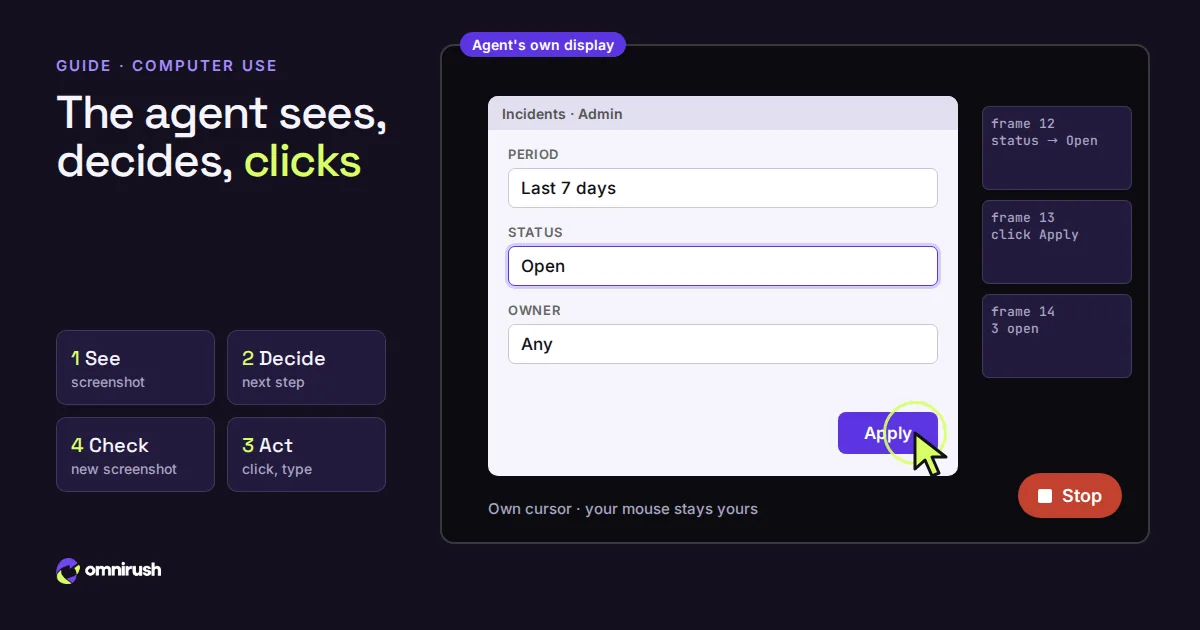
Computer use adds eyes and hands. The agent gets a screenshot of an app window, works out what is on it, and sends an action back: click at this point, type this text, press Enter, scroll down. Then it takes a new screenshot to see what happened. OpenAI lists computer use among the strengths of its GPT-6 models, and reports GPT-6 Astra as its best model for it.
How the loop works
- See: the agent takes a screenshot of the app it is working in.
- Decide: the model compares what it sees with the goal and picks one next step.
- Act: the agent clicks, types, presses keys or scrolls.
- Check: a fresh screenshot shows the result, and the loop repeats until the task is done or the agent needs you.
Each step costs a round trip to the model with an image, so computer use is slower than a shell command. It shines where nothing else works.
Computer use is slower than a shell command. It shines where nothing else works.
When to use it, and when not
| The job | Best tool | Why |
|---|---|---|
| Build, test, run scripts | Shell commands | Fast, exact output, easy to repeat |
| Query a database, drive a browser on localhost | An MCP server | Structured tools, fewer steps |
| Check that your desktop app's new dialog works | Computer use | Only the screen shows it |
| Fill in a form in an internal tool with no API | Computer use | Nothing else can reach it |
| Reproduce a bug a user reported with screenshots | Computer use | The agent follows the same clicks |
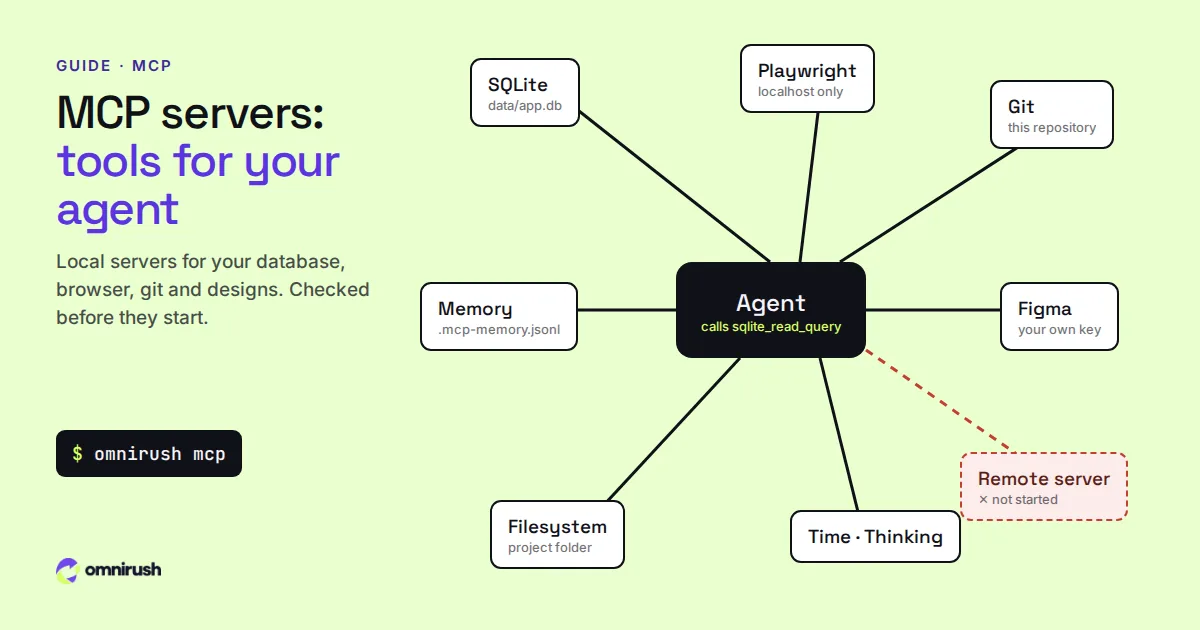
For web pages on your own machine, the Playwright MCP server is usually quicker than computer use; our MCP guide shows how to set it up.
Computer use in OmniRush
OmniRush has computer use in the CLI and the desktop app on Linux and Windows. By default it works on a display of the agent's own: a separate screen with its own cursor and a fresh browser, so your mouse, keyboard and clipboard stay yours while it works. It does not stop to ask at each step.
- Desktop app: the agent works on a display of its own, with its own cursor, and you can stop it at any time.
- CLI on Linux: the agent's display uses Xvfb. Install it once with sudo apt install xvfb openbox on Debian or Ubuntu.
- Your own screen is off by default. In the CLI, omnirush computer real-screen on lets the agent use it too, on Windows or a Linux X11 session; touching your mouse or keyboard pauses it. On Windows, the CLI needs this setting, because the agent's own display is in the desktop app.
- Not yet on macOS.
Try it
Update to the latest version (CLI 2.6.8 or desktop 3.7.3), open a project and ask for something that needs the screen:
$ omnirush computer status
$ omnirush
> Open https://status.example.com/admin in the browser on
  your display, filter incidents to last week, and tell me
  how many are still marked open.
omnirush computer status says whether computer use is on for your account and what is open. To stop it at once, press ctrl+x . in the CLI, run omnirush computer stop from any terminal, or click Stop in the desktop app.
Tips for good results
- Prefer text when you can. If the app has a CLI, an API or a config file, say so in the prompt; the agent will use it and keep the screen for what needs it.
- Name the app and the window. "In the Settings window of the app you just started" is easier than "in settings".
- Keep tasks short. One flow per prompt, then the next.
- Ask for evidence. "Tell me what the dialog said" makes the agent read the screen back to you.
- Use a strong model. GPT-6 Astra, the default in OmniRush, is the model OpenAI rates best for computer use.
Free, with the rest of the agent
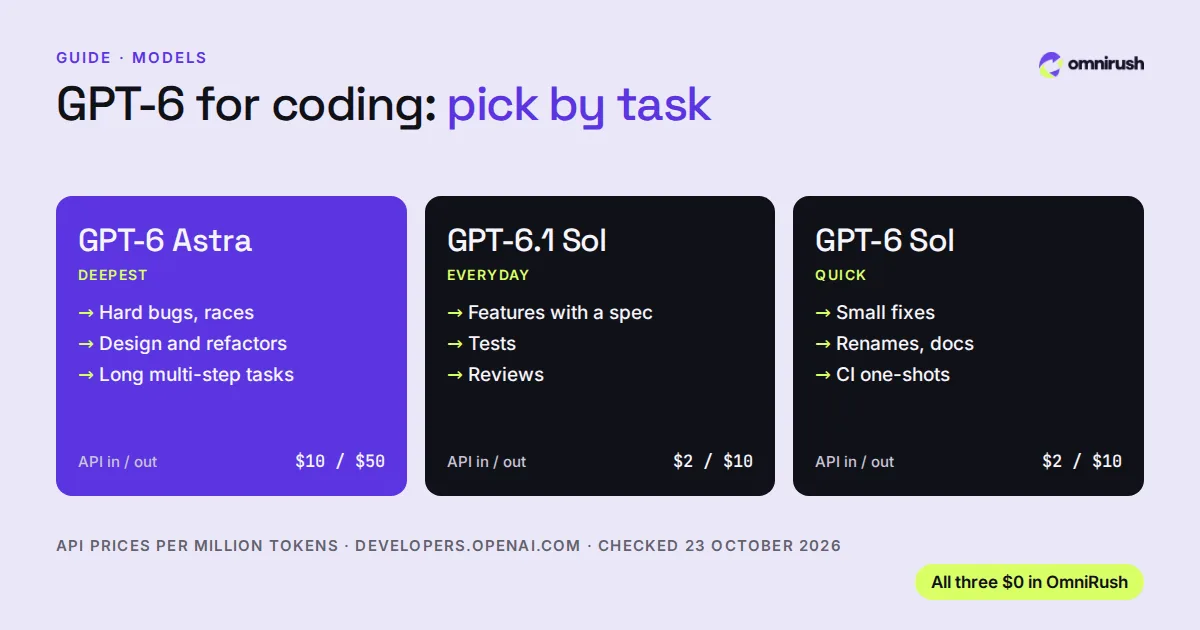
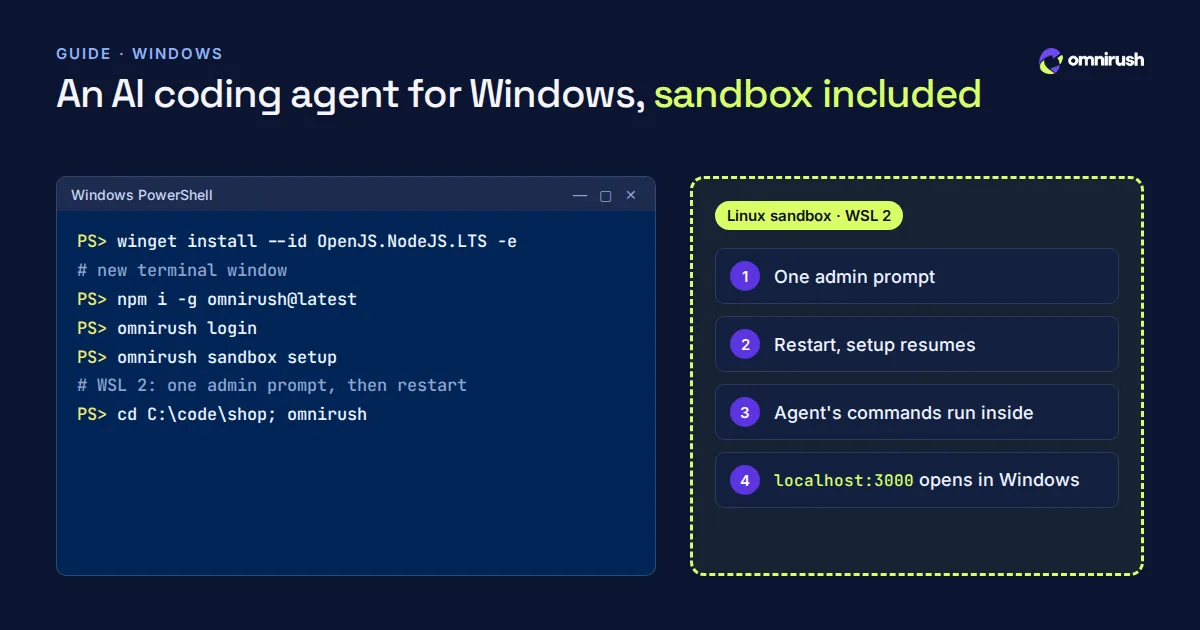
Computer use is part of the same free account as everything else in OmniRush: GPT-6 Astra, GPT-6.1 Sol and GPT-6 Sol, a daily allowance that refills every day, the desktop app and the CLI. The Windows guide covers setup on Windows, and the Linux CLI guide covers Linux.
Questions
What is a computer use AI agent?
An agent that operates software through its screen: it takes screenshots, decides on a step, and acts with clicks, typing and scrolling, in a loop until the task is done. It can use apps that have no API or command line.
Is there a free computer use agent?
Yes. OmniRush includes computer use in its free CLI and desktop app on Linux and Windows, on GPT-6 models with a daily allowance that refills every day. No card, no API key.
Does the agent take over my mouse?
Not by default. In OmniRush it works on a display of its own with its own cursor, so your mouse, keyboard and clipboard stay yours. Using your own screen is off unless you turn it on, and touching your mouse or keyboard pauses it.
How do I stop computer use?
Click Stop in the desktop app, press ctrl+x . in the CLI, or run omnirush computer stop from any terminal to stop it in every open session.
Does it work on macOS?
Not yet. Computer use in OmniRush works on Linux and Windows today.
Computer use or MCP: which should I use?
MCP when a server exists for the job, such as Playwright for web pages on localhost or SQLite for a database: it is faster and more precise. Computer use when the only way in is the screen.
Sources
Checked on October 23, 2026. Prices and features change: check each official page before you decide.
- Introducing GPT-6 Sol and Luna: computer use results (openai.com)
- OmniRush Privacy Policy (what is collected and how it is used)
- OmniRush Terms of Service (free access and allowances)
- OmniRush desktop app source and releases (GitHub)
- OmniRush command-line tool on npm
- OmniRush changelog (what each release added)
OmniRush is not affiliated with or endorsed by Anysphere (Cursor), Anthropic (Claude Code), Anomaly (opencode), the Freebuff and Codebuff team, OpenAI (GPT, Codex), Microsoft (Windows), Apple (macOS) or Figma. Product names are trademarks of their owners and are used only to identify their products.